Upload your SVG
PNG, JPG, WebP or SVG. Set the finished size and fabric.
Prepare vector artwork for PES embroidery. Keep the shapes clear, confirm the intended size and include the machine model in your production brief.
An SVG file shows what your design looks like. A PES file tells the machine how to sew it: where each stitch goes, which areas become satin, fill or running stitch, and when the thread colour changes. Hunch builds that stitch plan for you automatically and exports a PES file ready for your machine.
Included: realistic thread preview, stitch type editing, hoop sizing and export to PES.
PNG, JPG, WebP or SVG. Set the finished size and fabric.
Compare embroidery styles in a realistic thread preview and choose your favourite.
Satin, fill and running stitches are built with underlay and pull compensation.
Export PES and load it straight onto your machine.
An SVG describes shapes, fills, strokes and sometimes live text. It does not describe how the needle should travel. Keep a copy with editable objects, then prepare a self-contained version for handoff. Check clipping masks, linked images and overlapping shapes. A shape hidden behind another shape should not accidentally become an extra layer of stitches.
Outline custom fonts in your design application before handoff, and embed any linked images.
A realistic preview shows how fills, satins and colours will look on fabric before you sew.
Switch any area between satin, fill, running or cross stitch and tune density and angle.
Pick your hoop and the design is scaled to fit, ready to load on your machine.
Find inspiration for your next project in our floral, animal and seasonal collection.
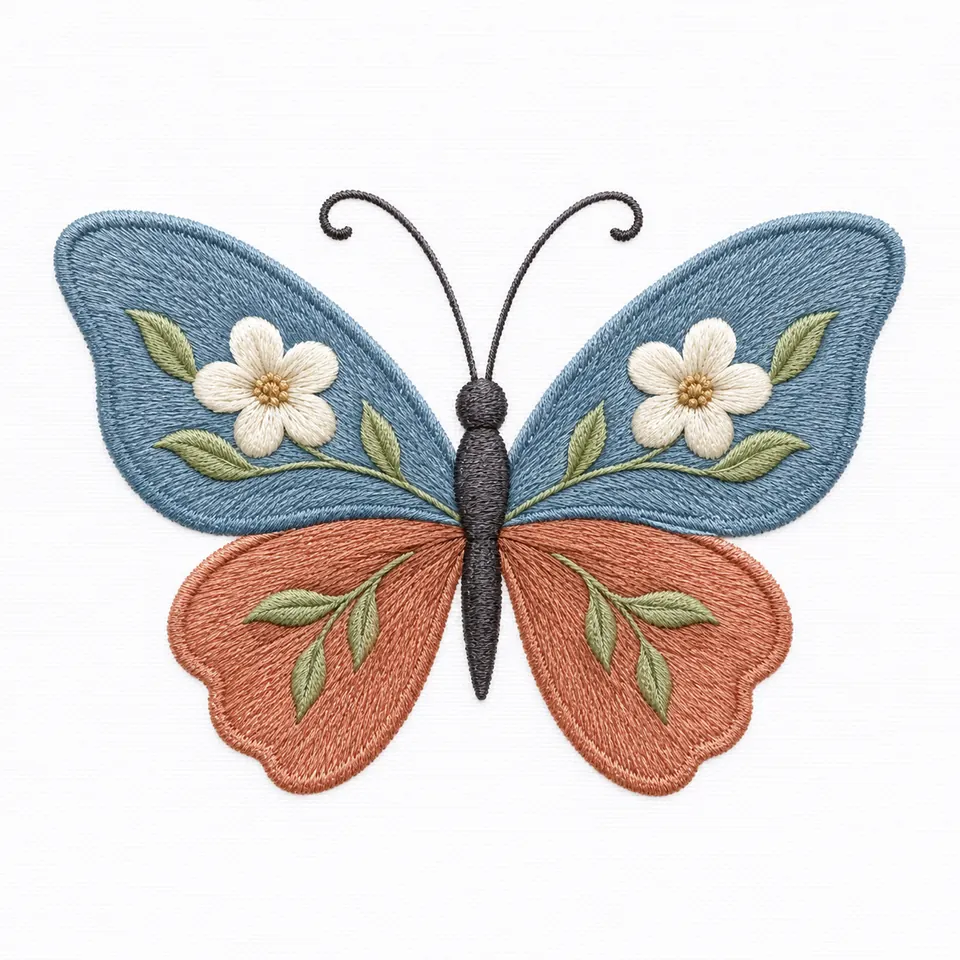 Animals
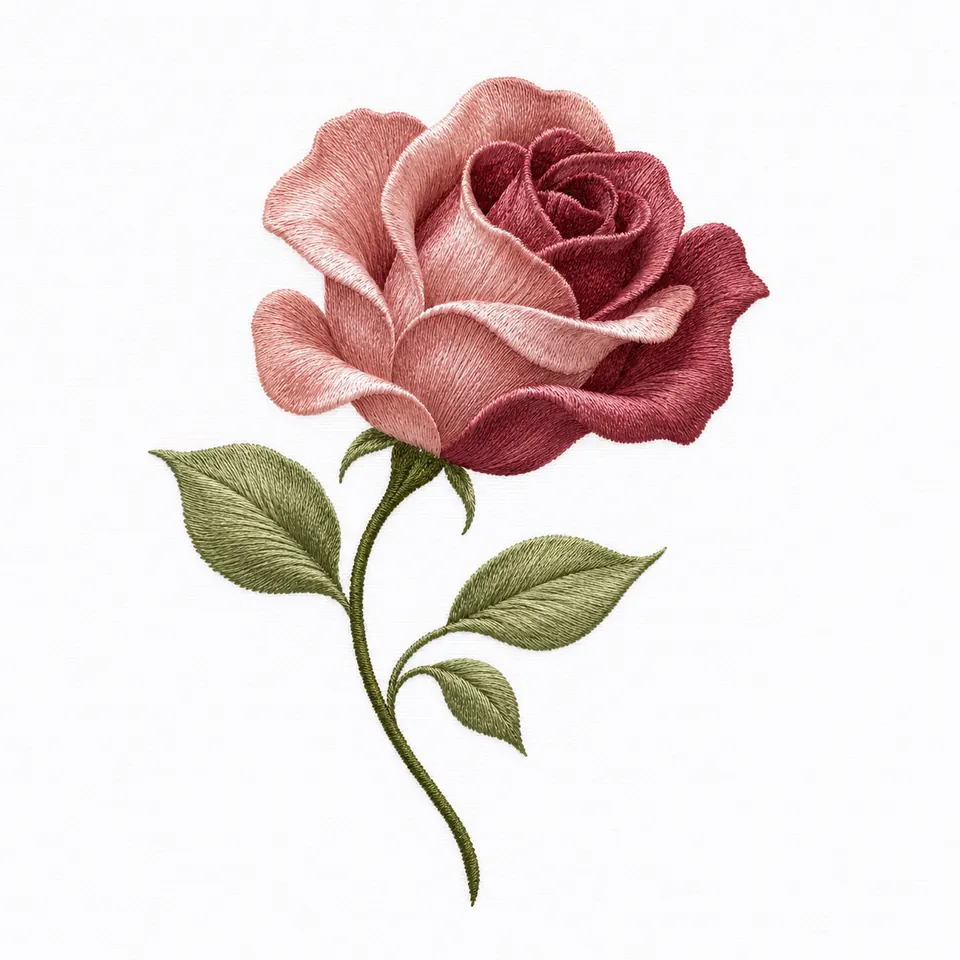 Flowers
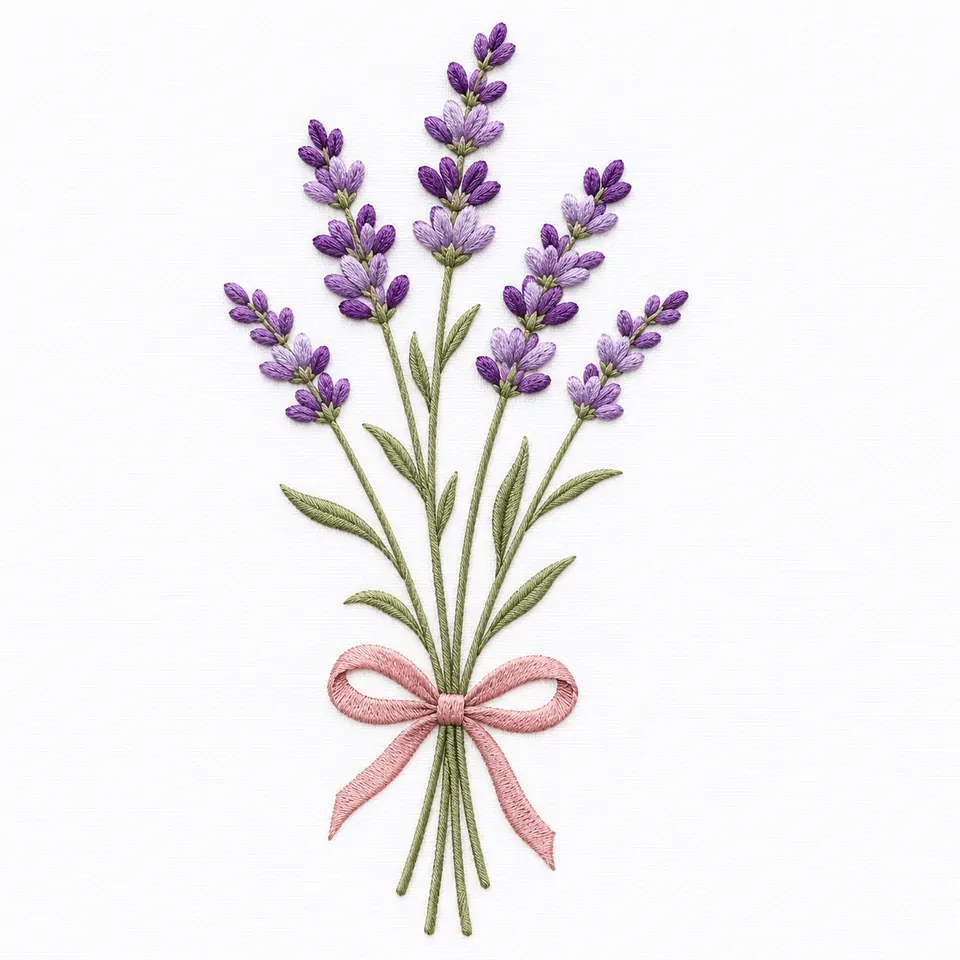 Flowers
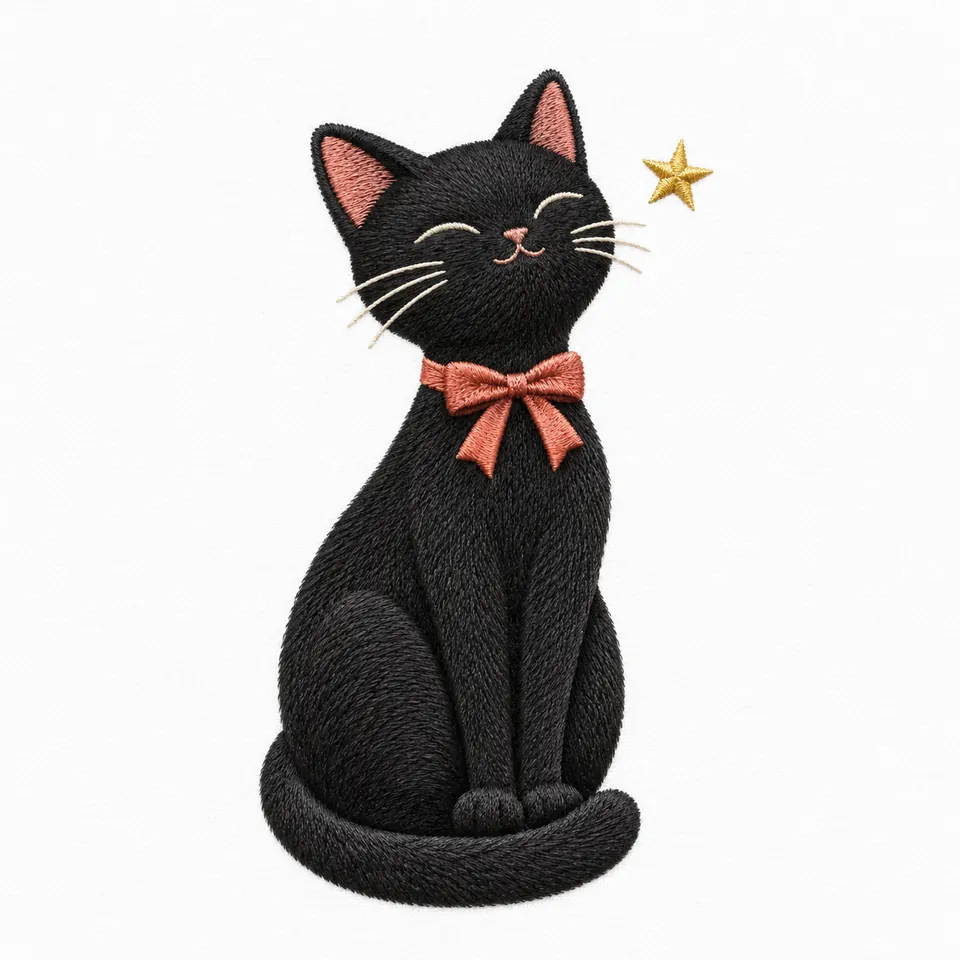 Animals
PES is common in Brother and Baby Lock workflows and can carry thread-colour information. Support varies by machine model and PES version. Record the exact machine and hoop in your brief rather than relying on the brand name alone. Exporting another format as PES does not automatically resize the design or correct its stitch density.
Ask for the PES version your machine supports, and confirm the physical dimensions before transfer.
DST vs PES: which format do you need?Upload your SVG, set the finished size and pick the stitch version you like. Hunch auto digitizes it and you download a PES file. Run a quick test sew out before a large order.
A normal SVG is artwork, not a machine stitch program. Digitizing assigns stitch types, spacing, underlay and sewing order to that artwork, then exports the format accepted by the machine.
PES works on Brother and Baby Lock embroidery machines.
Yes. Switch any area between satin, fill, running or cross stitch, and adjust density, angle and underlay to suit your fabric.
Watch it sew stitch by stitch in the free stitch simulator, or open a DST in the free DST viewer to check its size and stitch count.
Ready in minutes. Nothing to install.