Upload your JPG
PNG, JPG, WebP or SVG. Set the finished size and fabric.
Prepare a JPEG image for JEF embroidery. Review compression and small details before setting the finished size and machine requirements.
A JPG file shows what your design looks like. A JEF file tells the machine how to sew it: where each stitch goes, which areas become satin, fill or running stitch, and when the thread colour changes. Hunch builds that stitch plan for you automatically and exports a JEF file ready for your machine.
Included: realistic thread preview, stitch type editing, hoop sizing and export to JEF.
PNG, JPG, WebP or SVG. Set the finished size and fabric.
Compare embroidery styles in a realistic thread preview and choose your favourite.
Satin, fill and running stitches are built with underlay and pull compensation.
Export JEF and load it straight onto your machine.
Look closely around lettering and high-contrast edges. JPEG compression can introduce blocks or speckles that do not belong to the design. Re-export from the original artwork when possible. Enlarging a small JPEG does not restore missing detail, and a high-resolution photograph still needs artistic decisions about which details should become thread.
Compare the artwork at its intended physical size. Remove details that stop being readable when the design is reduced.
A realistic preview shows how fills, satins and colours will look on fabric before you sew.
Switch any area between satin, fill, running or cross stitch and tune density and angle.
Pick your hoop and the design is scaled to fit, ready to load on your machine.
Find inspiration for your next project in our floral, animal and seasonal collection.
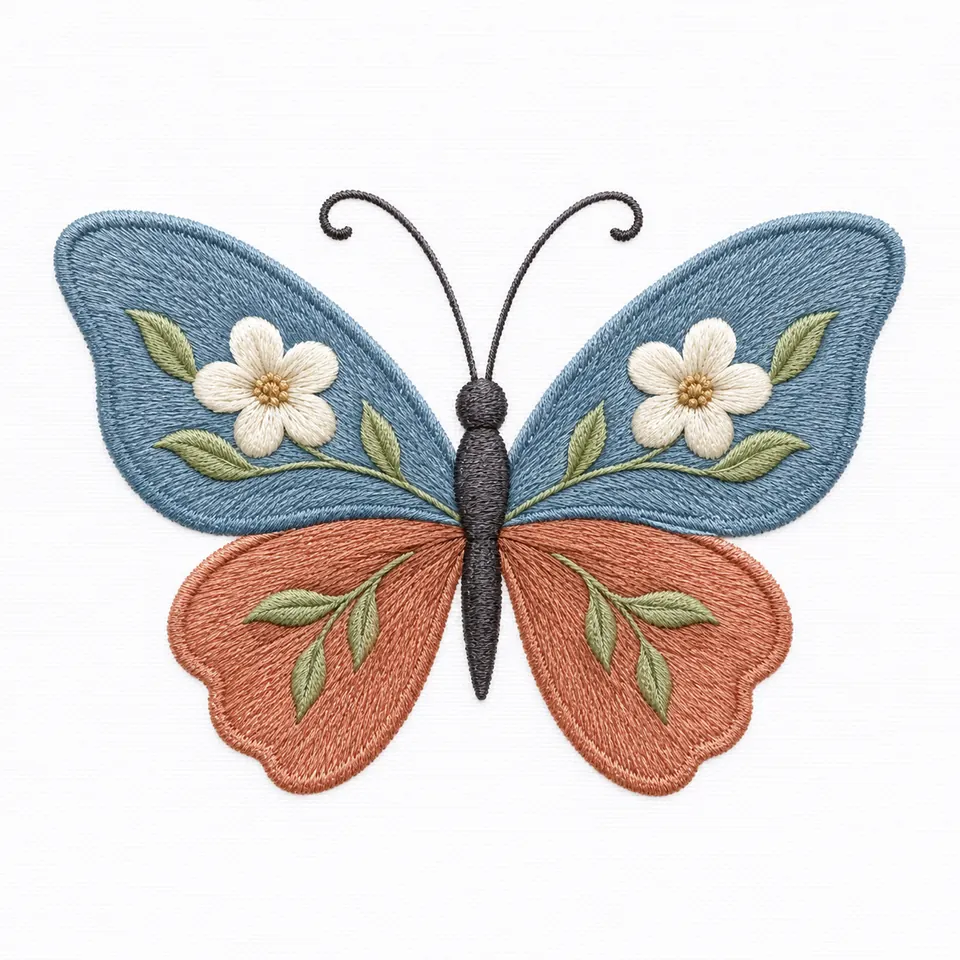 Animals
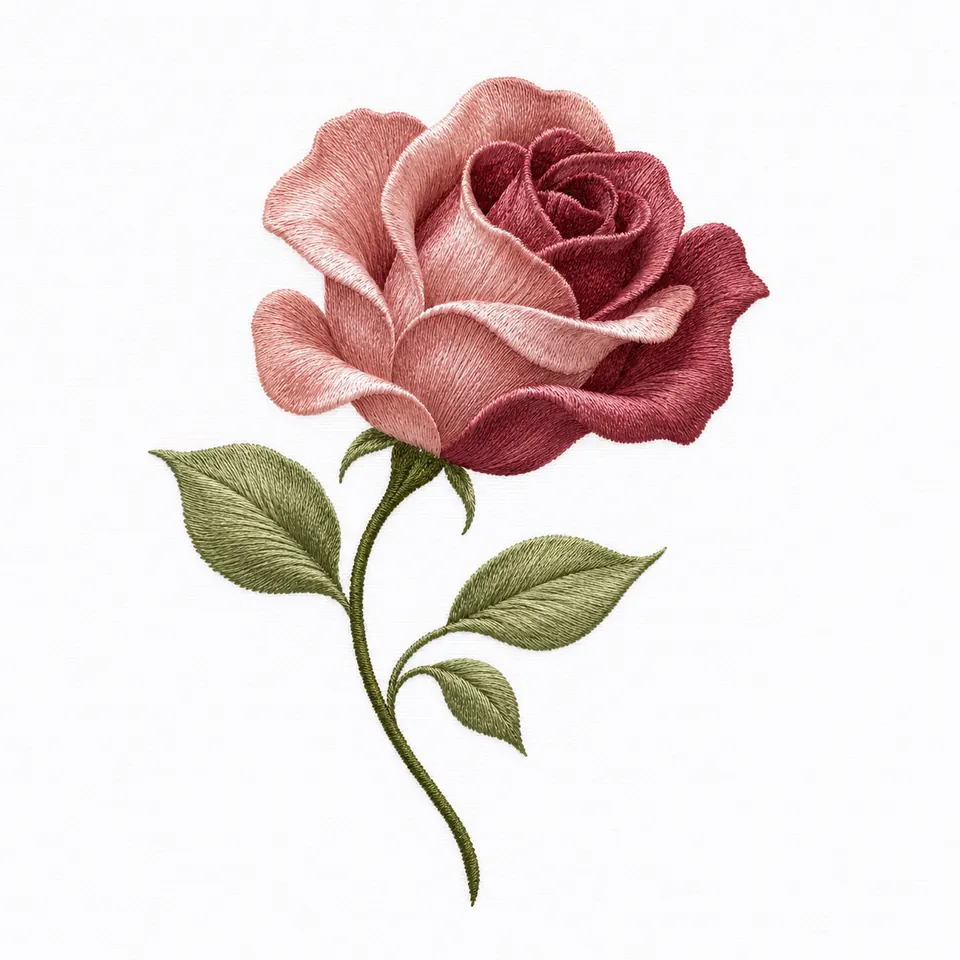 Flowers
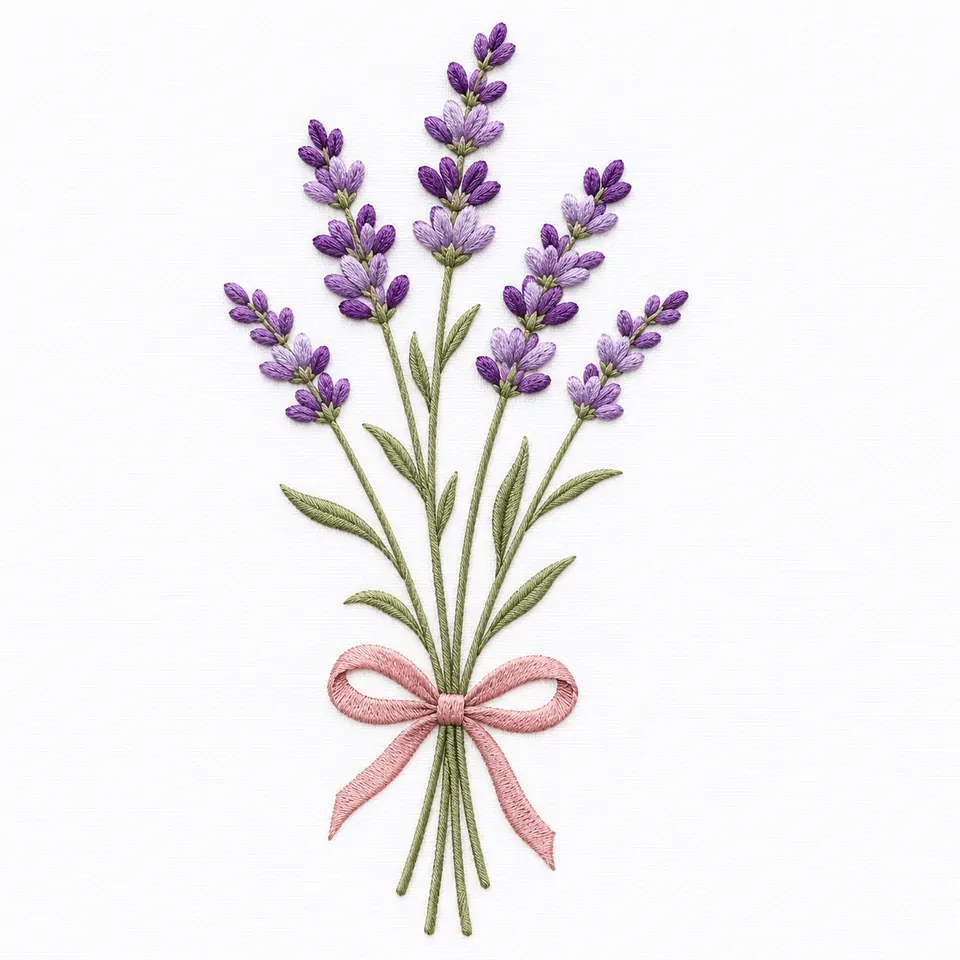 Flowers
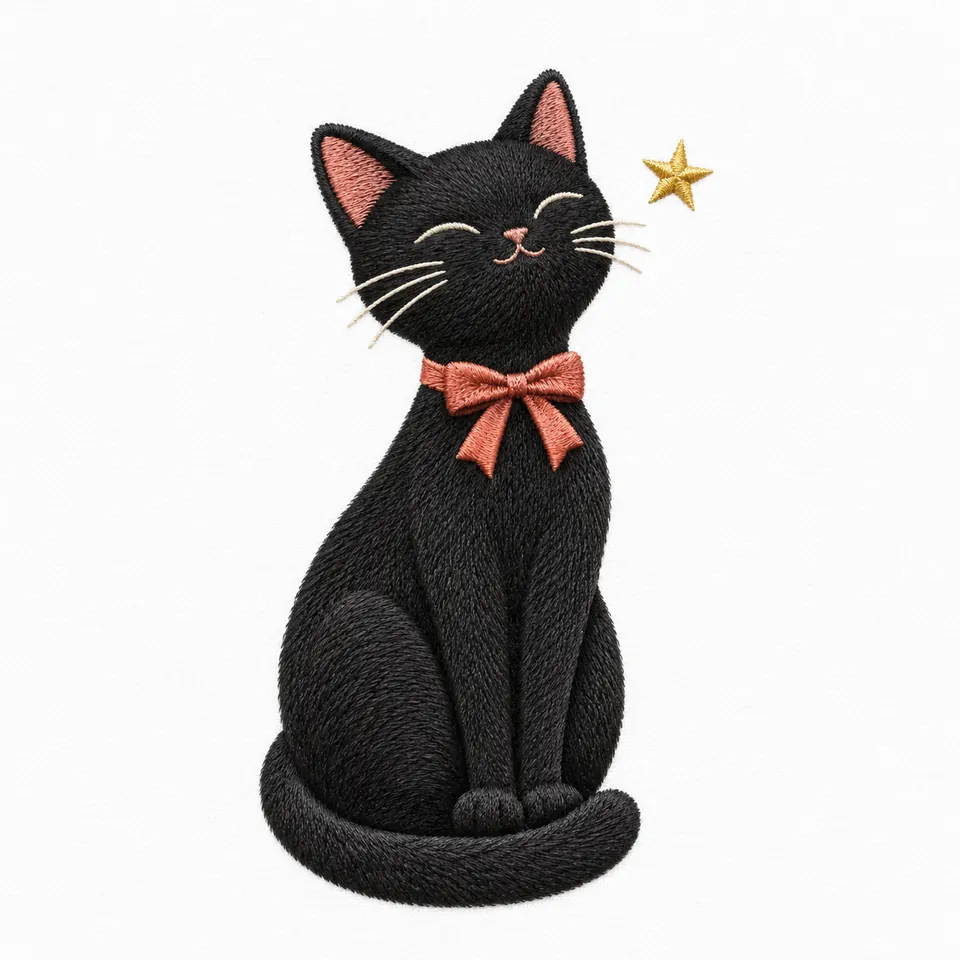 Animals
JEF is used in many Janome embroidery workflows and some compatible machines. The machine model, hoop selection and usable sewing field matter as much as the extension. Include those details in the handoff so the digitized design can be checked against the intended setup. Confirm support in your machine manual before requesting the export.
Record the exact machine and hoop. Do not assume that every machine from the same brand reads the same formats.
DST vs PES: which format do you need?Upload your JPG, set the finished size and pick the stitch version you like. Hunch auto digitizes it and you download a JEF file. Run a quick test sew out before a large order.
JPG and JPEG are two extensions for the same image format. They follow the same digitizing workflow. Neither contains stitch coordinates, so changing the filename to .dst or .pes will not make a usable embroidery file.
JEF works on Janome and Elna embroidery machines.
Yes. Switch any area between satin, fill, running or cross stitch, and adjust density, angle and underlay to suit your fabric.
Watch it sew stitch by stitch in the free stitch simulator, or open a DST in the free DST viewer to check its size and stitch count.
Ready in minutes. Nothing to install.